
Start with the kind of bad photo you mean
“Make it worse” can mean a soft image, a repeatedly shared meme, a poorly timed snapshot, or a scene that feels subtly wrong. Those goals need different edits. More blur will not give a person an awkward smile; an AI rewrite is unnecessary if all you need is a blocky avatar.
This guide compares conventional filters with generative image editing: using a reference image and a prompt to create a changed version. Some tools call any automated adjustment “AI,” so look at what the feature actually does.
Availability: our free image filters work now. AI Mode currently shows prepared examples and collects interest. It has no visitor uploads, live generation, or payment flow.
Filters vs AI editing at a glance
| Question | Ordinary filters | Generative editing |
|---|---|---|
| What changes? | Existing pixels: sharpness, blocks, color, noise, or compression. | Can reinterpret lighting, expressions, objects, and scene details. |
| How do you control it? | Choose a preset and adjust numerical controls. | Describe the change, inspect the result, and revise if needed. |
| What happens to text and faces? | Detail may become unreadable, but the filter does not invent new words or expressions. | Faces, words, and other details may be regenerated incorrectly. |
| What about transparent cutouts? | The PNG tool retains alpha, although edge values can change. | Background and alpha behavior depend on the model and export workflow. |
| What can I use here today? | Free browser tools with downloads. | A concept gallery with an interest check. |
Filters are easier to tune when you need a specific amount of damage. Generative editing is more flexible when the content should change, but that flexibility also means less certainty about the result.
The same portrait: ordinary blur vs an AI flash edit
First, here is the source with only a blur value of 3 applied through our PNG renderer. Resolution stays at 100%; pixelation, noise, and color changes are neutral. The article preview is saved as WebP for display.
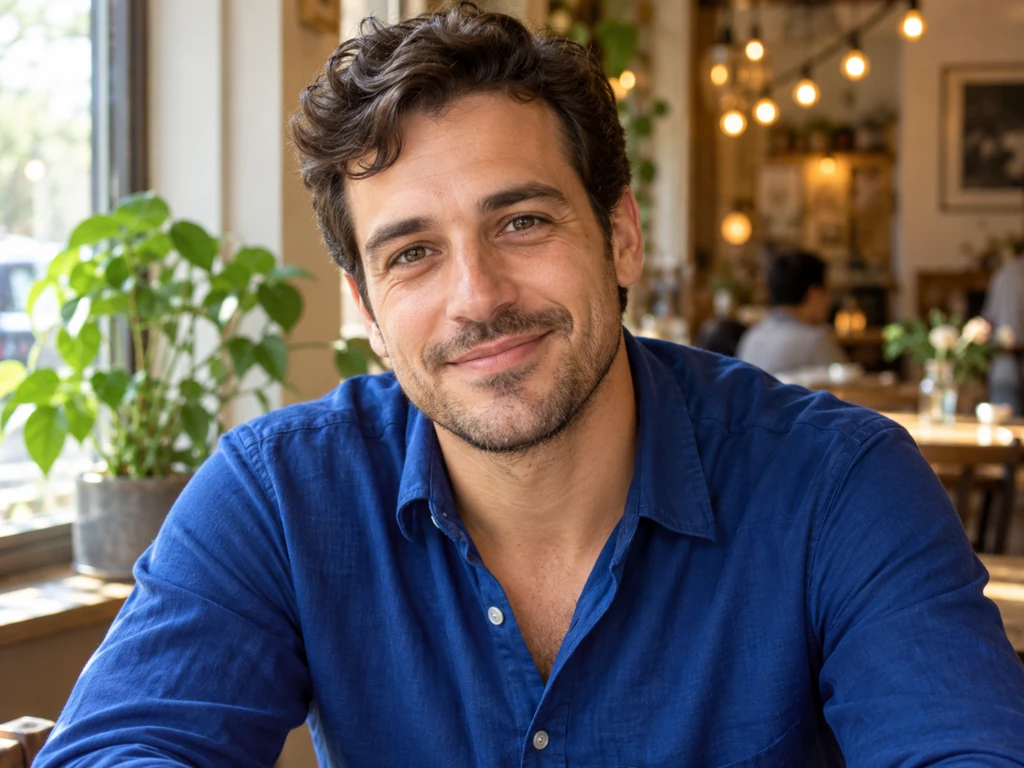
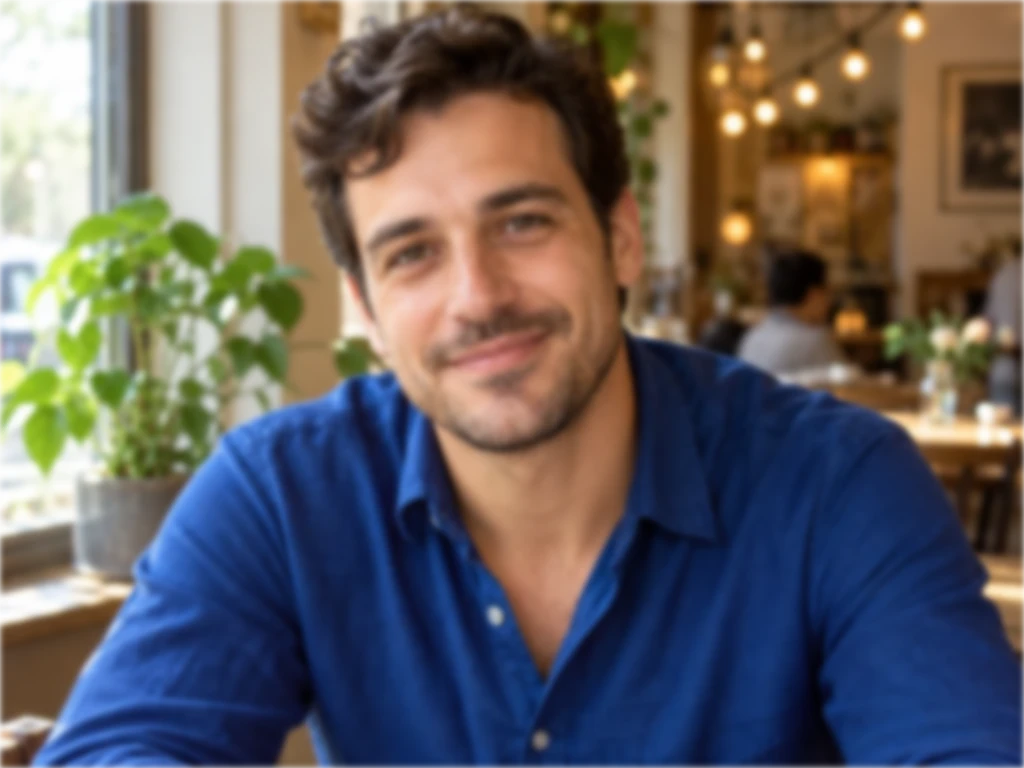
The filter softens the existing face, shirt, and cafe. It does not introduce a flash reflection or change the expression. This is useful when you want an out-of-focus version of the same composition.
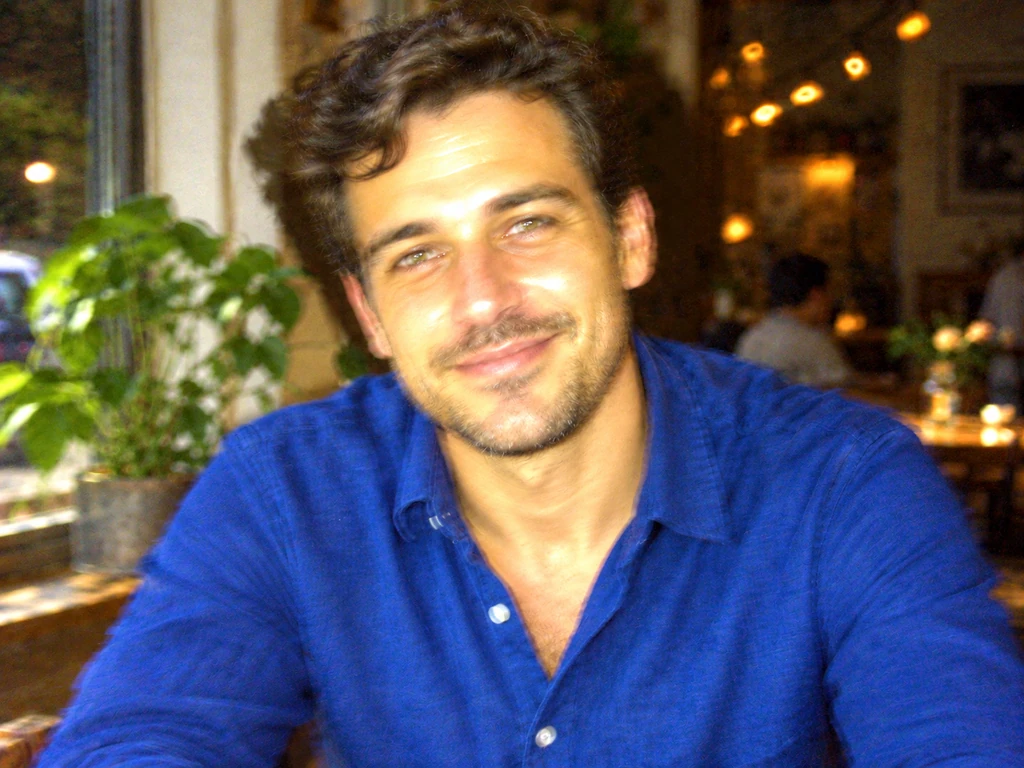
The AI example uses the same source as a reference for a bad-flash edit. Notice the bright highlights across the face and the altered balance between the subject and background. It suggests a different capture condition rather than simply turning down sharpness.
The source portrait and AI edit were generated for our demo gallery; this is not a customer upload. The blur result was produced locally from that source. This single comparison illustrates the difference in editing approach, not a guarantee that AI will preserve a face or outperform filters on every image.
When the composition is the problem
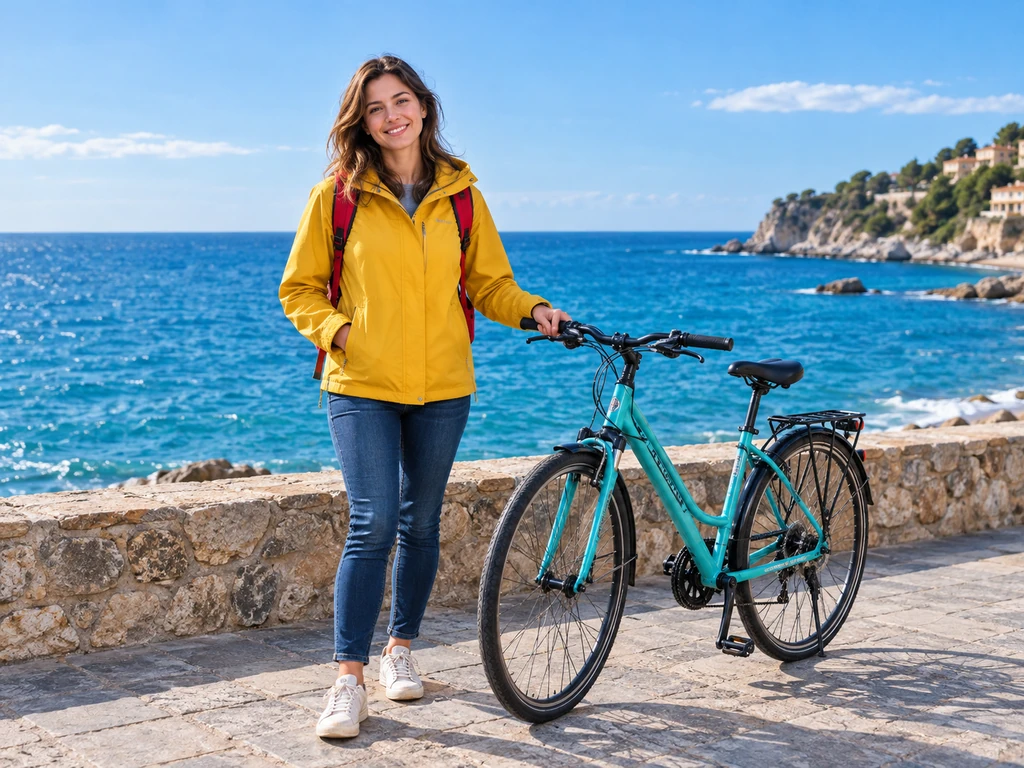
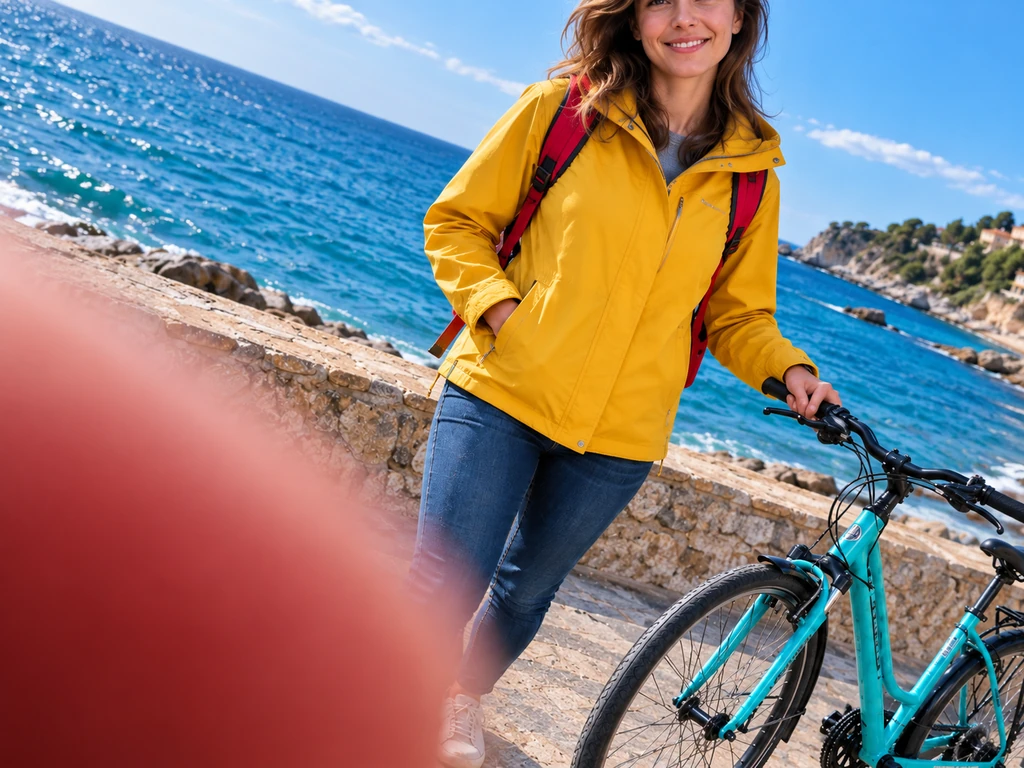
A crooked crop, a thumb over the lens, or a stranger interrupting the shot can make a picture feel like an accidental snapshot. AI can synthesize those changes together. Ordinary editing can also rotate or crop a photo; AI becomes useful when you need to invent missing content or an obstruction that was never there.
Other examples include a rain-smeared lens, an awkward blink, or an apparently normal room with unsettling details. These are requests about the scene or how it seems to have been photographed. Adding noise alone will not create them.
Which approach fits your project?
- A meme with a readable caption: start with a mild conventional effect. Check the words at posting size. Our reposted meme guide compares effects on the same caption.
- A transparent reaction sticker: use the PNG workflow. It keeps the cutout available for different backgrounds. See low-quality PNGs with transparency.
- A cheap-camera or old-phone impression: try blur, noise, and color adjustments first. Consider generative editing if the lighting or lens obstruction must change in a way those controls cannot express.
- An awkward portrait or unwanted photobomber: generative editing can change expressions and add scene content. Compare faces, hands, clothing, and background objects against the original afterward.
- A file that must fit an upload limit: use a target-size tool. Visual ugliness is not a reliable measure of bytes.
If exact wording, a recognizable logo, or a specific face matters, keep the edits conservative and inspect the output closely. Neither a blur filter nor an AI prompt should be treated as a guarantee of anonymization.
Describe a specific failure instead of asking for “bad quality”
A useful prompt names the photographic problem and what should remain. Start with one problem so you can tell whether the model followed it. These are educational starting prompts for an image-editing service, not prompts you can submit to this site today.
Harsh on-camera flash
“Edit this photo to look like a poorly exposed compact-camera snapshot. Add harsh direct flash, shiny facial highlights, and a darker background. Keep the person, clothing, and cafe composition as close to the reference as possible. Do not add text.”
Rain on the lens
“Make this outdoor photo look as though it was taken through a rain-speckled lens under flat gray light. Add a few soft water smears that partly obscure the scene. Keep the main subject and location recognizable; avoid turning the photo into an illustration.”
Preservation instructions express your preference; they do not lock pixels. After generation, check whether the face, signs, or objects changed unexpectedly. If the scene is right but looks too polished, add a little conventional blur or compression afterward instead of repeatedly regenerating it.
Compare the prepared AI scenes, or try a conventional effect on your own image now.
Explore AI Mode examplesUse the free image makerFAQ
Do I need AI to make a photo blurry or pixelated?
No. Ordinary blur, pixelation, noise, and compression controls can create those effects directly. AI is more useful when you want to change the scene, expression, lighting, or apparent shooting conditions.
Can AI keep exactly the same face and text?
A prompt can request preservation, but it cannot guarantee it. Generative edits can change facial details, lettering, clothing, and objects. Inspect the output against the original before using it.
Can I upload a photo and generate an AI result here?
Not yet. AI Mode is a gallery and interest check. It does not currently accept uploads, run prompts, generate images for visitors, or take payments. The free browser filters are available now.
Can I combine an AI edit with ordinary filters?
Yes. Create the scene change first, inspect it, then add a small amount of blur, noise, or compression to the saved result. Keep the original so you can revise either step independently.
Does making a photo look worse make the file smaller?
Not necessarily. Noise and added detail can increase file size. If you need a smaller file rather than a different aesthetic, use resizing or a tool with a target file size.