
Preset aspect ratios
Choose from seven image crop aspect ratios, then keep that shape while moving or resizing the crop area.
Free image aspect ratio cropper
Last updated: 2026-09-16
Crop image to aspect ratio presets including 1:1, 4:3, 3:4, 3:5, 5:3, 9:16, and 16:9, or enter an exact custom size. Drag and resize the crop area, use precise pixel coordinates, then copy or download the result.
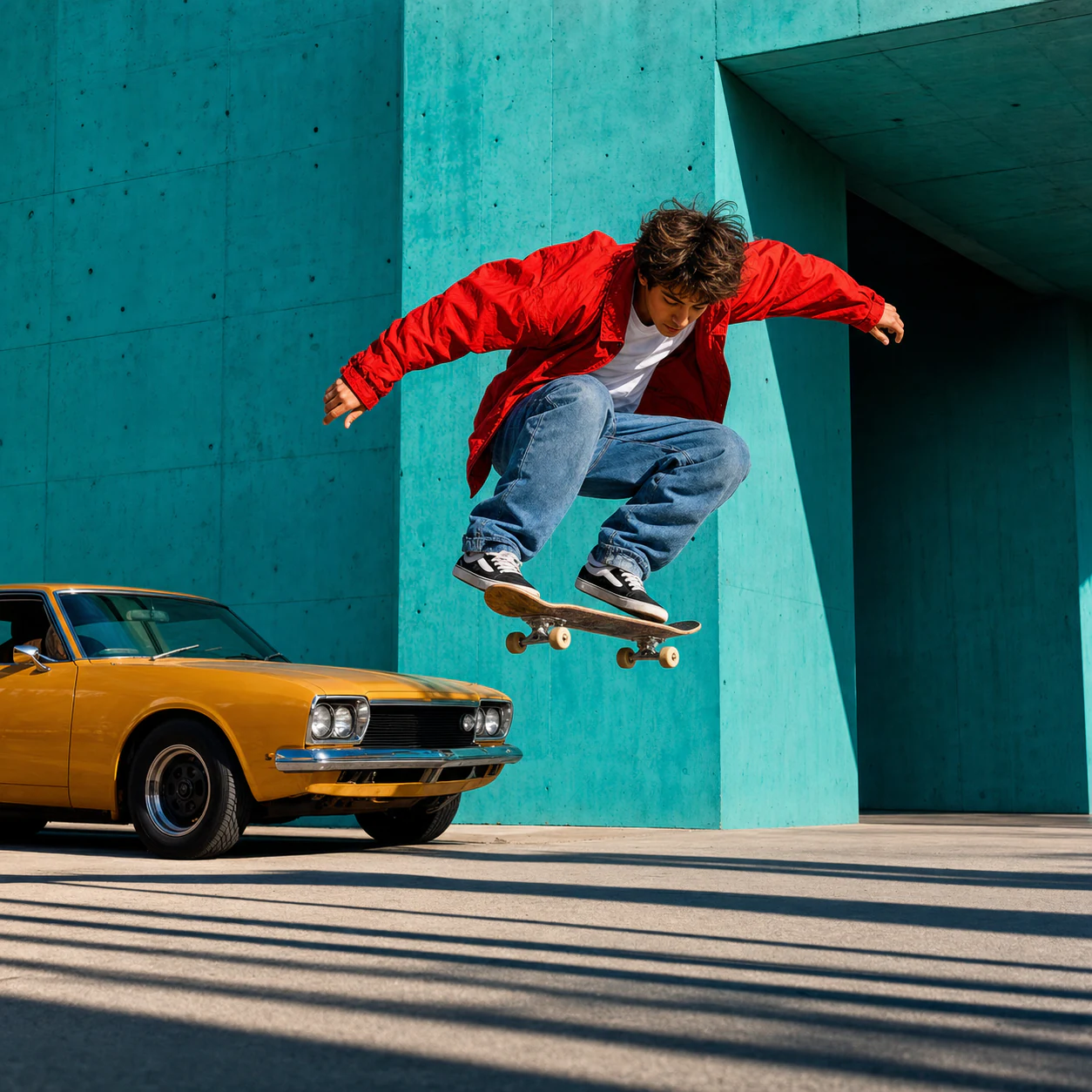
An image cropper for controlling the crop ratio, visible area, and final dimensions.
This crop image to aspect ratio tool removes the outside part of a JPG, PNG, or WebP while keeping the area you select. Use it when an image has the wrong composition, includes unwanted edges, or needs to fit a fixed aspect ratio.
The page combines visual cropping with exact controls. You can drag the crop rectangle, choose a common aspect ratio, enter the crop in original-image pixels, or set an exact output width and height. The original file is not overwritten.
To crop image to aspect ratio online, upload a file, choose a ratio, position the crop, and export. Exact coordinates are optional.
It covers quick visual cropping and exact pixel work without turning the page into a full photo editor.
Choose from seven image crop aspect ratios, then keep that shape while moving or resizing the crop area.
Enter a target width and height when the finished image must match a specific pixel size for an upload, layout, or template.
Use X, Y, Width, and Height to define the crop from the original image pixels instead of relying only on visual dragging.
Move the crop rectangle over the image and resize it from the edges or corners while the result preview updates.
The source image is decoded and cropped in the browser. There is no account, watermark, or media-processing upload.
Copy the result as PNG or download a PNG, JPG, or WebP file with an output format that suits the next task.
An aspect ratio describes the relationship between width and height. It controls the crop shape, not the final number of pixels.
| Aspect ratio | Shape | Common image crop uses |
|---|---|---|
| 1:1 | Square | Profile pictures, avatars, logos, product tiles |
| 4:3 | Landscape | Photos, article images, presentation graphics |
| 3:4 | Portrait | Portrait photos, cards, document images |
| 3:5 | Tall portrait | Portrait prints, posters, product photos |
| 5:3 | Wide landscape | Panoramic photos, headers, editorial images |
| 9:16 | Vertical | Stories, phone backgrounds, vertical covers |
| 16:9 | Widescreen | Video thumbnails, banners, slide covers |
| Custom | Any proportion | Exact upload requirements and template dimensions |
Start with the destination of the image. The right ratio or exact size depends on where the cropped result will be used.
Crop a face, logo, avatar, or product into a square while keeping the important subject centered.
Prepare a tall image for story-style layouts, phone screens, vertical covers, and other portrait placements.
Create a widescreen crop for video thumbnails, presentation covers, website banners, and landscape previews.
Keep a familiar photo or print proportion for landscape images, portrait cards, blog illustrations, and editorial layouts.
Enter the required width and height for a store listing, catalog tile, ad placement, or product image template.
Enter the same X, Y, Width, and Height values when several screenshots need the same visible region.
Practical answers about aspect ratios, exact sizes, coordinates, output quality, formats, and browser-local processing.
Image crop means removing pixels from the outside of an image so the remaining area has a different composition, aspect ratio, or size. Cropping changes what is visible; resizing changes the dimensions of the full image.
Yes. Choose Custom, enter the output width and height, and apply the size. The crop box keeps the same ratio and the downloaded image is resized to those exact dimensions.
To crop image to aspect ratio online, choose 1:1, 4:3, 3:4, 3:5, 5:3, 9:16, or 16:9. The tool creates the largest centered crop that fits that ratio, then you can move or resize the selection before exporting.
Yes. X and Y set the top-left corner in original-image pixels. Width and Height set the selected source area. The crop box updates when those values change.
X is the horizontal distance from the image's left edge to the crop area's top-left corner. Y is the vertical distance from the top edge. Both values use original-image pixels.
No. The image is decoded, cropped, copied, and downloaded in your browser. It is not sent to a media-processing server.
The page includes 1:1, 4:3, 3:4, 3:5, 5:3, 9:16, and 16:9 presets, plus a custom width and height option.
Yes, when the browser allows image clipboard access on HTTPS or localhost. If clipboard access is unavailable, use the download button.
Cropping itself removes the pixels outside the selected area. PNG keeps a lossless export, while JPG and WebP quality settings can add compression. Enlarging a small crop to a much larger custom output can also make it look softer.
Cropping removes part of the image and can change its composition or aspect ratio. Resizing keeps the whole image but changes its pixel dimensions. Custom output on this page can crop first and then resize the selected area.
Choose PNG for lossless output or transparency, JPG for a widely supported photo file, and WebP for modern compression. Copied images use PNG.
No. Auto center crop selects the largest centered rectangle that matches the active aspect ratio. Move the crop box manually when the subject is away from the center.
Choose the tool that matches your next edit.