Bad Quality Image Maker

Rough pixels. Transparent background.

Low Quality PNG Maker

Pixelate, blur, or lower the resolution of an image, then download it as PNG. Keep a transparent background for stickers, icons, and graphics.

Free · No signup or watermark · Images stay on your device

or drop a PNG, JPG, or WebP · up to 25 MB
Original800 × 640 px
Original image before PNG effects
Low quality PNGPreparing…
PNG preview with the selected effects

Make it rougher

.PNG

Larger blocks hide more detail. 1 px turns pixelation off.

Soften the image and the edges of transparent artwork.

Reduce width and height together. 100% keeps the original dimensions.

Transparent background kept.
File size may increase.

Preparing your sample…

How to make a PNG look low quality

Try the gaming cat to compare the effects, then use the same controls on your own image.

  1. 01

    Open an image

    Choose or drop a PNG, JPG, or WebP. Start with a transparent PNG if you want a cutout for a sticker or overlay. The original preview stays beside your edited result.

  2. 02

    Choose and refine a look

    Select Pixelated, Blurry, or Low resolution, then adjust the sliders. Change one setting at a time so you can see what it does. Keep resolution at 100% if you only want a rougher appearance.

  3. 03

    Save, copy, or share

    Check the result dimensions and file size, then use Download PNG or Copy Image. On a phone, open Copy & Share for either action. If your browser cannot copy or share images, download the file instead.

From fluffy gamer to pixelated sticker

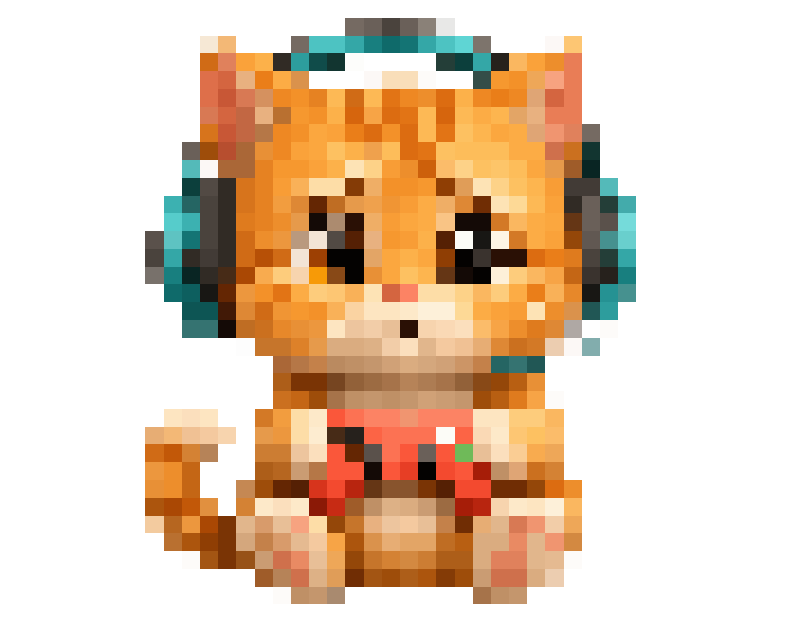
The same 800 × 640 PNG, before and after an 18 px pixelation effect. The fur, headphones, and controller become blockier while the background stays transparent.

Want a physically smaller image? Choose Low resolution in the editor instead.

Orange cat wearing teal gaming headphones and holding a red controller on a transparent background
Original · 800 × 640
The same gaming cat with pixelated fur, headphones, and controller on a transparent background
Pixelated · 800 × 640

When a rough-looking PNG is useful

Choose this format when you want less visual detail while keeping an image layer you can place over another background.

Meme stickers and reaction images

Give a cutout character an intentionally rough look before dropping it into a chat, meme, or social graphic. Pixelation makes expressions and outlines chunkier without adding a rectangular background to a transparent source.

Try this: Start with Pixelated. Keep blur off if the sticker has small text, and check that the expression is still readable at its final display size.

Gaming avatars and stream graphics

Make a character portrait, badge, or overlay element look less polished while keeping it as a separate PNG layer. Use the original resolution when the graphic already fits your layout, or reduce it when you need fewer pixels.

Try this: Check the destination’s dimension requirements first. The Low resolution preset uses 30% of the original width and height.

Retro-style icons and mockups

Try a blocky treatment on a simple icon, logo, or interface graphic. A recognizable silhouette usually survives pixelation better than thin strokes or tiny lettering. Keeping resolution at 100% lets you compare treatments at the same canvas size.

Try this: Increase Pixel block size gradually. This creates a pixelated effect; it does not redraw the artwork as hand-made pixel art.

Lo-fi collages and soft graphic layers

Soften a cutout illustration for a collage, poster, or presentation. Blur can make the subject and its transparent edges feel less crisp. Download the edited PNG, then position it over your composition in your usual design editor.

Try this: Start with Blurry, then reduce the blur if the outline becomes too faint. Check both light and dark preview backgrounds before exporting.

Pixelated, blurry, or low resolution?

These controls remove detail in different ways. Start with the effect that matches the result you need, then combine the sliders if you want a stronger treatment.

PNG effects, suitable uses, and preset starting values
EffectWhat changesUseful forPreset settings
PixelatedReplaces fine detail with visible blocks. At 100% resolution, the canvas keeps its original dimensions.Chunky stickers, meme cutouts, and retro-style icons.18 px blocks · 0 px blur · 100% resolution
BlurrySoftens detail and edges, including partially transparent edges. It does not create JPEG compression artifacts.Soft illustrations and lo-fi collage layers.1 px blocks (off) · 3 px blur · 100% resolution
Low resolutionReduces width and height together. The 800 × 640 sample becomes 240 × 192 at 30%.Smaller pixel dimensions or a low-detail image that looks rougher when enlarged in a layout.1 px blocks (off) · 0 px blur · 30% resolution

Keep small details readable. Check faces, thin outlines, and lettering at the size you will actually use. A strong effect that looks fun in the preview can make a small sticker hard to recognize. Reset effects lets you start again from the current original without reopening it.

Check transparency before you export

The preview background helps you inspect the artwork. It never becomes part of the exported image.

Start with a real cutout

A PNG extension alone does not mean the background is transparent. If a white box or checkerboard was painted into the original image, it stays in the result. This editor does not remove backgrounds or cut out subjects.

Inspect the outline on light and dark

Switch the preview to white, then black. Look for faint edges, gaps, or halos that may be less obvious on the checkerboard. Pixelation can make the outline blockier; blur can spread semi-transparent pixels around it.

Test it in the final layout

Place the downloaded PNG in your chat, slide, or design editor. Check its displayed size and background there, since the receiving app controls how it is shown. Downloading keeps a PNG file available if a paste or share does not behave as expected.

Lower visual quality, still a PNG

PNG is lossless, so it has no JPEG-style quality slider. This tool removes detail before saving: pixelation creates blocks, blur softens edges, and lower resolution reduces width and height.

Need a smaller file instead?

A rougher-looking PNG is not always smaller. If your goal is an upload limit, use Reduce Image Size in KB for a target-size JPG. For JPEG compression and more effects, use the Low Quality Image Maker.

Frequently asked questions

Answers about PNG quality, transparent backgrounds, supported files, and saving your result.

How can a lossless PNG look low quality?

PNG saves the pixels it is given without JPEG-style compression damage. This tool changes those pixels first with pixelation, blur, or lower resolution, then saves the edited result as PNG.

Can I make a PNG look worse without changing its dimensions?

Yes. Keep Output resolution at 100% and adjust Pixel block size or Blur. The image keeps its original width and height while losing visual detail.

Will my PNG keep its transparent background?

Yes. The tool does not add a solid background. Pixelation and blur can change transparency along the edges of your artwork. Checkerboard, white, and black are preview backgrounds only and are not included in your download.

Why is a checkerboard or white box still visible in my download?

It may be part of the source image rather than real transparency. Switch the preview between white and black: a painted background stays visible. This tool preserves existing transparency; it does not remove backgrounds.

Does lower quality mean a smaller PNG file?

Not always. Lowering the output resolution often reduces file size, but a blurry or pixelated PNG can still be larger than the original. Check the result size before downloading. This tool does not target a specific KB limit.

Can I combine pixelation, blur, and low resolution?

Yes. Choose a preset, then adjust all three sliders together. Selecting another preset replaces the current slider values. Reset effects returns to 1 px pixel blocks, 0 px blur, and 100% resolution using your current source image.

Can I use a JPG, WebP, or animated image?

Use a static PNG, JPG, or WebP up to 25 MB, 8,000 pixels per side, and 16 megapixels. The result is always a static PNG. A JPG has no transparent background to preserve, and animation is not preserved.

How do I copy or share the finished PNG on my phone?

Tap Copy & Share, then choose Copy Image or Share Image. On desktop, use Copy Image beside Download PNG. Browser support varies; if copying or file sharing is unavailable, download the PNG and attach it from your device.

Is this free, and are my images uploaded?

It is free, with no signup or watermark. The editor processes your image in your browser instead of uploading it for editing. Your original file is not overwritten.


More ways to edit your PNG